
Solutions · Client approval
Client approvals in monday.com
A client approval workflow that runs from your monday.com board: the client gets an email with the files or links, clicks Accept or Request change, and the answer lands on the item. No client login, no chasing replies in your inbox. Built by a monday.com Certified Partner.



Who it’s for
For teams that wait on a client’s sign-off
If work can’t move until a client says yes, approvals belong on the board where the work is tracked, not in email threads.
Agencies and production teams
Videos, podcast episodes, ad creative, and other deliverables a client must approve before they go live.
Manufacturers
Drawings and specs a customer must approve before production starts.
Any client-facing team
Documents, designs, or plans that need a clear yes or a clear list of changes.
How it works
How the client approval workflow runs
We build the approval into your board with Make, so it starts from a status change and ends with the answer on the item.
1. Work reaches review
The item moves to the review stage on your board.
2. Approval email goes out
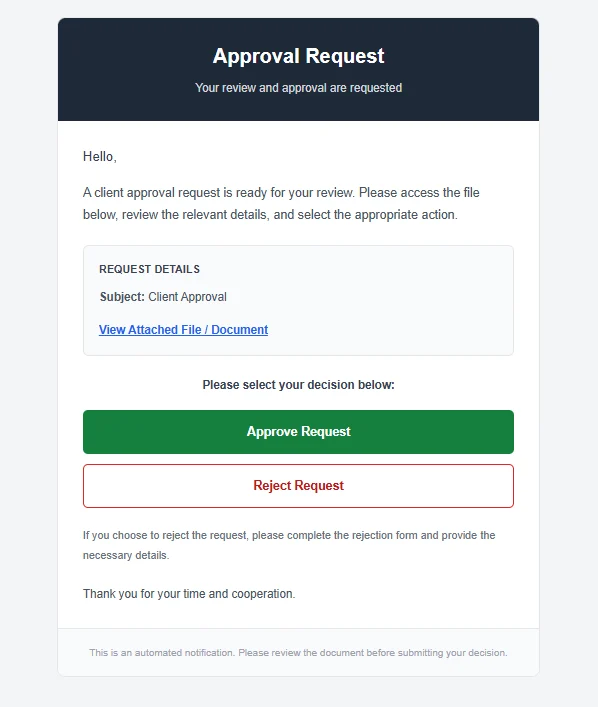
The client gets an email with the files attached, a Google Drive link, or a link to the tool where the work lives.
3. The client decides
They click Accept or Request change. They don’t need a monday.com account.
4. Accepted
The answer is recorded on the item and the work moves to the next stage.
5. Change requested
A monday.com form opens, and the client’s note is logged on the item for the team.
6. History on the item
Every approval and change request stays on the item, so nobody has to search an inbox for who said what.
Inside the workflow
What the team and the client see
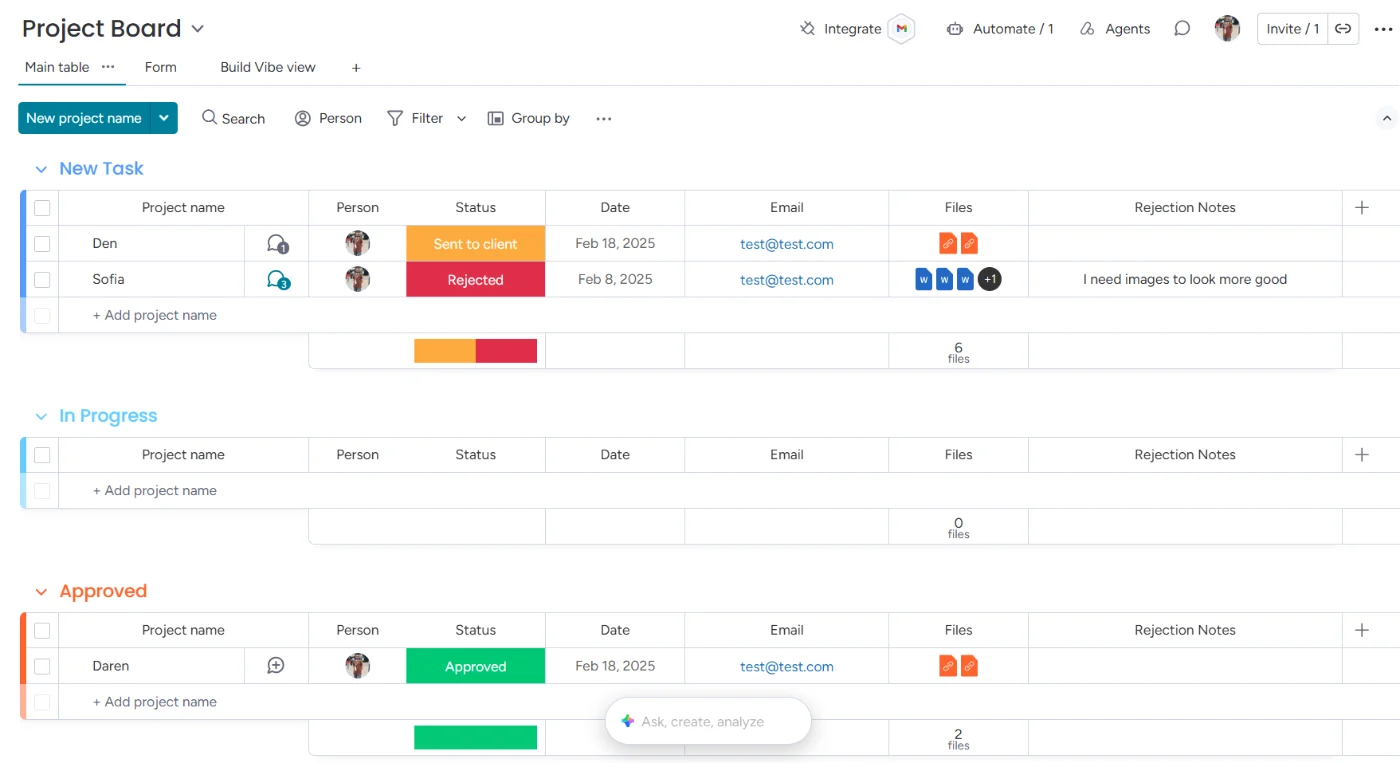
The board shows every item waiting on a client, what came back with notes, and what is approved. The client only sees the email.
What’s included
What the client approval process includes
Approval emails
Sent from the board when an item reaches review, to the client on that item.
Files or links
Attach files, share a Google Drive link, or link to the tool where the client reviews the work.
Accept or Request change
Two clear buttons, so every answer is a yes or a specific change.
Change notes on the item
Requests come in through a monday.com form, and the note is logged on the item.
Status updates
The item’s status updates from the client’s answer, so the next step can start.
No client login
Clients approve from their email and never see your boards.
In use
Client approvals we run for our clients
Digital marketing and production
Be Authentic Productions
Deliverables such as videos and podcast episodes go to clients for approval from each project board, as part of a system that runs 15 to 20 client projects at once.
Manufacturing
Evolution Fires
Customers get drawing approval emails with the files attached. A rejection opens a form, the reason is logged, and approved drawings move to production.
Related solution
Approving prices instead of files?
Our quote management tool uses the same approach for quotes: the client gets a branded quote built from your price list and clicks Accept Quote or Request Change.
Connected tools
Tools behind the approval workflow
The approval emails and status updates run through Make.
- monday.com
- Make
- Google Drive
- Gmail or Outlook
- monday.com forms
FAQ
Client approvals in monday.com: common questions
Keep reading
Related guides and services
monday.com project management
Project templates, ticket forms, approvals, and billing for teams running many client projects.
Quote management for monday CRM
Branded quotes with Accept Quote and Request Change, and invoices on acceptance.
monday.com automations
The automation recipes and workflows that move work between stages.
Make.com partner
Make scenarios that connect monday.com with email, Google Drive, and the rest of your stack.
Talk to us about your approval process
Book a free call. We’ll look at how your clients approve work today and show you how it would run from your monday.com board.